

1
Turn on Data Roaming
Settings → Cellular/Mobile → your eSIM line → Data Roaming → ON. This is the #1 cause of “no internet” — travel eSIMs need roaming enabled to connect.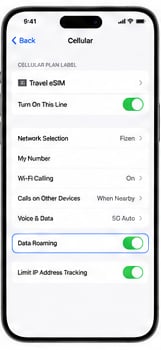
2
Set the eSIM as your mobile data line
In Settings → Cellular/Mobile → Mobile Data, make sure your Fizen eSIM is selected — not your home SIM.
3
Toggle Airplane Mode
Turn Airplane Mode on, wait 30 seconds, turn it off. This forces your phone to re-register on the local network. A full restart works too.
4
Select a network manually
In Settings → Cellular/Mobile → your eSIM line → Network Selection, switch off Automatic and pick a supported carrier from the list. If one carrier fails, try another.
5
Check your data balance
Open Fizen App → eSIM → My eSIMs to confirm your plan is active and has data left. If the plan is used up, buy a new plan in a few taps (it comes as a new eSIM to install). See Check Your Data Balance.
Still not connected?
Contact support — covered by the 1:1 Trip Guarantee
Tap the chat icon in the Fizen App. A human agent will assist you as soon as possible — and if the fault is on our side, replace your eSIM free of charge or refund you under the guarantee.